> ## Documentation Index
> Fetch the complete documentation index at: https://docs.modularmind.app/llms.txt
> Use this file to discover all available pages before exploring further.
# Native Connections
> Connecting Maia to 3rd party essential business tools
## Seamless Tool Connection
Maia integrates natively with popular business applications, allowing workflows to read, write, and manage data across your existing tools.
You don't need to manually configure "nodes" or "connectors." Just tell Maia what you need, and it automatically uses the right connection.
## How Connections Work
### One-Time Authorization
When you mention a tool for the first time:
```
"Check my Gmail for messages from customers"
```
Maia prompts you to authorize access via standard OAuth
 You approve the specific permissions Maia needs (e.g., "Read Gmail messages")
Your authorization is encrypted and stored securely
Maia automatically uses the saved authorization — no repeated logins needed
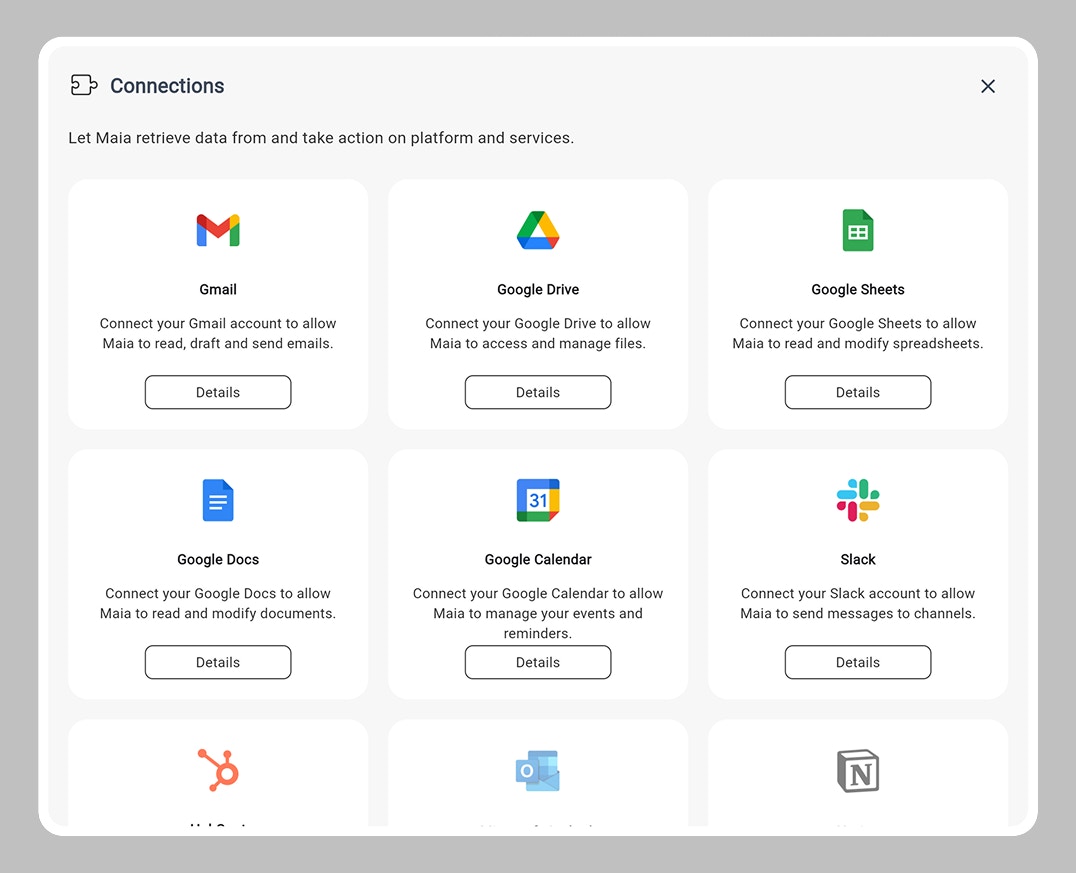
Optionally, you can have a look at available connections through Connections settings in your Maia workspace, and connect your accounts there as well.
You approve the specific permissions Maia needs (e.g., "Read Gmail messages")
Your authorization is encrypted and stored securely
Maia automatically uses the saved authorization — no repeated logins needed
Optionally, you can have a look at available connections through Connections settings in your Maia workspace, and connect your accounts there as well.
 ### Automatic Action Selection
You don't specify action use, Maia infers what you need:
```
"Read emails from support@customer.com,
add a row to the 'Customer Feedback' Google Sheet
with the sender, subject, and date."
```
1. Gmail: Search inbox
2. Gmail: Filter by sender
3. Gmail: Extract subject and date
4. Google Sheets: Find 'Customer Feedback' sheet
5. Google Sheets: Append new row
## Privacy & Data Access
**Important:** Maia only accesses data needed for your specific workflows. The AI model processes data transiently — nothing is stored permanently without your explicit instruction.
### What Maia Can See
* Only data from authorized accounts
* Only during workflow execution
* Only for the specific task requested
### What Maia Cannot See
* Data from non-authorized accounts
* Information outside the workflow scope
* Historical data after workflow completes
### Your Controls
* Revoke access anytime
* Audit responses show what was accessed
Learn how Maia dynamically selects the right tools for each task
### Automatic Action Selection
You don't specify action use, Maia infers what you need:
```
"Read emails from support@customer.com,
add a row to the 'Customer Feedback' Google Sheet
with the sender, subject, and date."
```
1. Gmail: Search inbox
2. Gmail: Filter by sender
3. Gmail: Extract subject and date
4. Google Sheets: Find 'Customer Feedback' sheet
5. Google Sheets: Append new row
## Privacy & Data Access
**Important:** Maia only accesses data needed for your specific workflows. The AI model processes data transiently — nothing is stored permanently without your explicit instruction.
### What Maia Can See
* Only data from authorized accounts
* Only during workflow execution
* Only for the specific task requested
### What Maia Cannot See
* Data from non-authorized accounts
* Information outside the workflow scope
* Historical data after workflow completes
### Your Controls
* Revoke access anytime
* Audit responses show what was accessed
Learn how Maia dynamically selects the right tools for each task