> ## Documentation Index
> Fetch the complete documentation index at: https://docs.modularmind.app/llms.txt
> Use this file to discover all available pages before exploring further.
# Deployed Workflows
> Deploy workflows to run automatically with flexible triggers
## From Chat to Automation
Once you've perfected a workflow by watching it run, you can **deploy it to the cloud** to run automatically — no need to keep Maia open or manually trigger execution.
Deploying a workflow transforms a one-off task into a **persistent, reusable process** that can be triggered on a schedule, by an external event, or called by Maia itself as part of a larger plan.
## Running Workflows Inside Sessions vs. Deployed
The interface remains the same whether you're actively working with Maia or reviewing automated runs. The difference is in how and when workflows execute.
### Running Inside the Session
**What it means:**
* You initiate the workflow directly in a session
* Watch execution in real-time
* Results delivered when complete
**Best for:**
* Testing new workflows
* One-off research tasks
* Tasks requiring human judgment
* Learning how Maia works
**Example:**
```
"Research the top 5 project management tools and
create a comparison doc"
```
You watch it run, review results, maybe tweak and re-run.
### Deployed Workflows
**What it means:**
* Workflow runs automatically based on one or more triggers
* No manual initiation required
* You can open any deployed workflow to see execution details
* Results saved in your workspace to access anytime
**Best for:**
* Recurring tasks (daily, weekly, monthly)
* Event-triggered actions (when X happens, do Y)
* Modular building blocks for Maia to use across plans
* Background data processing
* Scaling operations
**Example:**
```
Deploy the "competitor pricing check" workflow to run
every Monday at 9 AM and send results to #marketing-channel
```
Once deployed, the workflow runs automatically every week. You can open it anytime to see execution details and results.
## One Workflow, Multiple Triggers
Every deployed workflow can be triggered from multiple sources simultaneously. You assign **triggers** to control when and how a workflow runs:
Run on a schedule — hourly, daily, weekly, or monthly
Trigger via HTTP requests from external systems
Let Maia call the workflow as a reusable action within larger plans
A single workflow can have any combination of these triggers active at the same time. For example, a lead scoring workflow could run on a daily schedule, accept webhook calls from your website, and be available as an action Maia uses inside a larger lead generation pipeline — all simultaneously.
## Deploying a Workflow
There are two ways to deploy a workflow:
### Method 1: Deploy via Chat
Simply tell Maia you want to deploy your workflow, and Maia will suggest the appropriate trigger type with options.
**Example:**
```
"Deploy this workflow to run every Monday morning"
```
Maia will present an interactive suggestion in the chat with:
* Recommended trigger type (routine, webhook, or action)
* Pre-configured options based on your request
* A **Deploy** button to review and confirm settings
Click the deploy button in the chat suggestion to review the options and proceed with deployment.
### Method 2: Deploy via Workflow Board
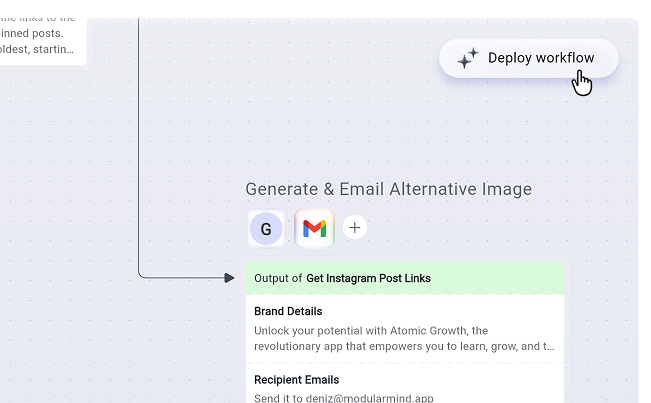
Use the **Deploy workflow** button in the top-right corner of the workflow board.
 **Steps:**
1. Click the **Deploy workflow** button in the top-right corner
2. Review the workflow details and click **Deploy** to activate
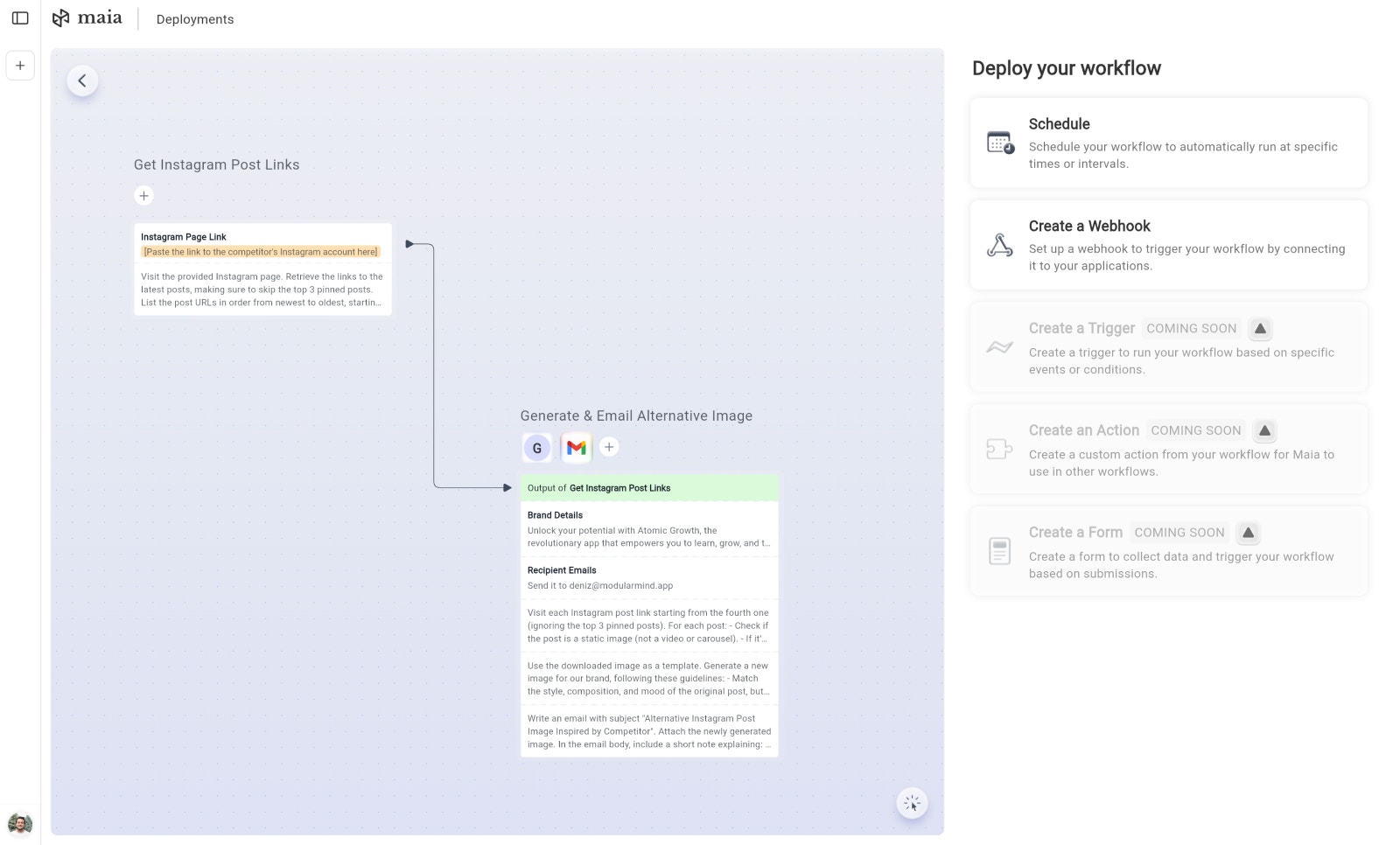
3. Once deployed, add triggers to control how the workflow runs:
* **Enable the Action trigger** to make the workflow available as a reusable action for Maia
* **Use the Add Trigger button** to attach routine (scheduled) or webhook triggers
4. Configure each trigger's settings and enable it
**Steps:**
1. Click the **Deploy workflow** button in the top-right corner
2. Review the workflow details and click **Deploy** to activate
3. Once deployed, add triggers to control how the workflow runs:
* **Enable the Action trigger** to make the workflow available as a reusable action for Maia
* **Use the Add Trigger button** to attach routine (scheduled) or webhook triggers
4. Configure each trigger's settings and enable it
 ## Managing Triggers
Once deployed, you can manage all triggers from the deployed workflow's detail page:
* **Add triggers** — Attach additional routine or webhook triggers, or enable the action trigger
* **Enable/Disable** — Toggle individual triggers on or off without removing them
* **Edit** — Modify trigger settings (schedule, response configuration, etc.)
* **Delete** — Remove triggers you no longer need
* **Run manually** — Execute the workflow on demand at any time
## Workflow Limits by Plan
| Plan Tier | Active Workflows |
| -------------------- | ---------------- |
| **Free Plan** | 3 workflows |
| **Plus & Pro Plans** | Unlimited |
A "workflow" is a unique deployed workflow configuration. Adding multiple triggers to the same workflow still counts as **one** workflow toward your limit.
## Real-World Examples
### Example 1: Daily Competitor Monitoring
**Workflow:** Check 10 competitor websites for pricing changes
**Triggers:**
```yaml theme={null}
Routine: Daily at 8 AM (Mon-Fri)
Execution: Scrape pricing pages, compare to previous day
Delivery:
- If changes detected:
→ Email: Alert to pricing@company.com
- If no changes:
→ No notification (silent success)
```
**Benefit:** Team stays informed of market changes without manual checking
### Example 2: Weekly Lead Enrichment
**Workflow:** Process new leads from Google Form submissions
**Triggers:**
```yaml theme={null}
Routine: Every Monday at 9 AM
Webhook: Receives form submissions in real-time
Execution:
1. Read form responses from past week (routine) or process incoming lead (webhook)
2. For each lead, research company (web + LinkedIn)
3. Enrich with: industry, size, tech stack
4. Add to CRM with enriched data
Delivery:
- Update CRM records
- Email summary to sales@company.com
(# of new leads, top prospects)
```
**Benefit:** Sales team gets qualified, enriched leads without manual research
### Example 3: Monthly Financial Report
**Workflow:** Generate comprehensive financial report
**Triggers:**
```yaml theme={null}
Routine: 1st of every month at 6 AM
Execution:
1. Pull data from accounting software API
2. Calculate key metrics (revenue, expenses, profit, growth %)
3. Generate charts (revenue trend, expense breakdown)
4. Create 20-page PDF report with analysis
Delivery:
- Save to Drive: "Financial Reports/{{YYYY}}/{{Month}}.pdf"
- Email to: CFO, CEO, board members
```
**Benefit:** Consistent, professional monthly reporting with zero manual effort
## Execution Logs
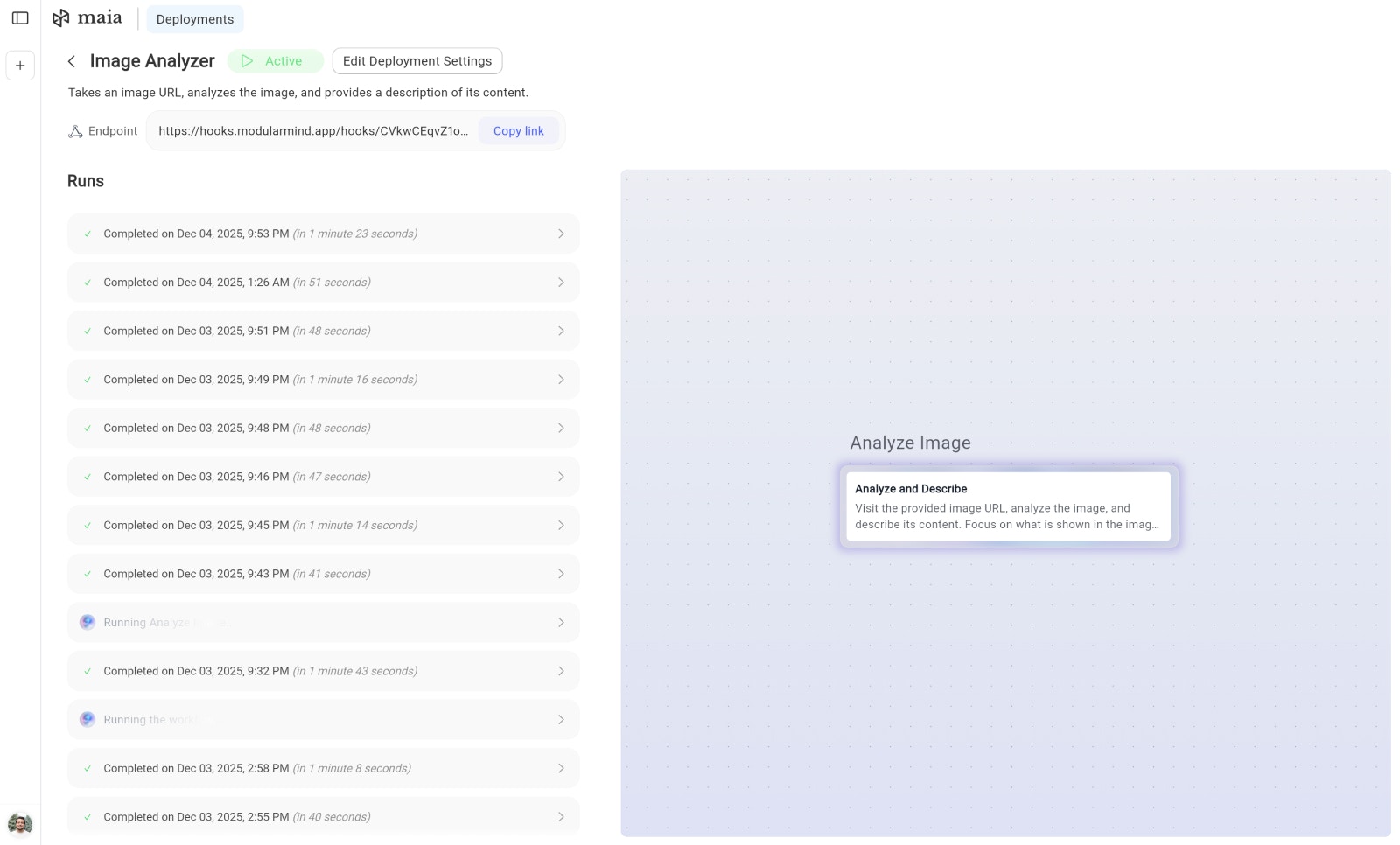
Every deployed workflow maintains run logs:
### What's Logged
* **End time**: When execution completed
* **Duration**: How long it took
* **Steps completed**: Which actions ran successfully
* **Errors**: Any failures or issues
* **Results**: Summary of what was produced and what actions were taken
* **Trigger**: Which trigger initiated the run (routine, webhook, action, or manual)
## Managing Triggers
Once deployed, you can manage all triggers from the deployed workflow's detail page:
* **Add triggers** — Attach additional routine or webhook triggers, or enable the action trigger
* **Enable/Disable** — Toggle individual triggers on or off without removing them
* **Edit** — Modify trigger settings (schedule, response configuration, etc.)
* **Delete** — Remove triggers you no longer need
* **Run manually** — Execute the workflow on demand at any time
## Workflow Limits by Plan
| Plan Tier | Active Workflows |
| -------------------- | ---------------- |
| **Free Plan** | 3 workflows |
| **Plus & Pro Plans** | Unlimited |
A "workflow" is a unique deployed workflow configuration. Adding multiple triggers to the same workflow still counts as **one** workflow toward your limit.
## Real-World Examples
### Example 1: Daily Competitor Monitoring
**Workflow:** Check 10 competitor websites for pricing changes
**Triggers:**
```yaml theme={null}
Routine: Daily at 8 AM (Mon-Fri)
Execution: Scrape pricing pages, compare to previous day
Delivery:
- If changes detected:
→ Email: Alert to pricing@company.com
- If no changes:
→ No notification (silent success)
```
**Benefit:** Team stays informed of market changes without manual checking
### Example 2: Weekly Lead Enrichment
**Workflow:** Process new leads from Google Form submissions
**Triggers:**
```yaml theme={null}
Routine: Every Monday at 9 AM
Webhook: Receives form submissions in real-time
Execution:
1. Read form responses from past week (routine) or process incoming lead (webhook)
2. For each lead, research company (web + LinkedIn)
3. Enrich with: industry, size, tech stack
4. Add to CRM with enriched data
Delivery:
- Update CRM records
- Email summary to sales@company.com
(# of new leads, top prospects)
```
**Benefit:** Sales team gets qualified, enriched leads without manual research
### Example 3: Monthly Financial Report
**Workflow:** Generate comprehensive financial report
**Triggers:**
```yaml theme={null}
Routine: 1st of every month at 6 AM
Execution:
1. Pull data from accounting software API
2. Calculate key metrics (revenue, expenses, profit, growth %)
3. Generate charts (revenue trend, expense breakdown)
4. Create 20-page PDF report with analysis
Delivery:
- Save to Drive: "Financial Reports/{{YYYY}}/{{Month}}.pdf"
- Email to: CFO, CEO, board members
```
**Benefit:** Consistent, professional monthly reporting with zero manual effort
## Execution Logs
Every deployed workflow maintains run logs:
### What's Logged
* **End time**: When execution completed
* **Duration**: How long it took
* **Steps completed**: Which actions ran successfully
* **Errors**: Any failures or issues
* **Results**: Summary of what was produced and what actions were taken
* **Trigger**: Which trigger initiated the run (routine, webhook, action, or manual)
Set up recurring workflows with flexible scheduling