> ## Documentation Index
> Fetch the complete documentation index at: https://docs.modularmind.app/llms.txt
> Use this file to discover all available pages before exploring further.
# Routine Triggers
> Run deployed workflows on a recurring schedule
## Turn Tasks into Routines
Routine triggers let you run deployed workflows at specific times without manual intervention — hourly, daily, weekly, or monthly. A single workflow can have multiple routine triggers, alongside webhook and action triggers.
## Setting Up a Routine Trigger
From your deployed workflow's detail page, click the **Add Trigger** button and select **Routine** to configure automatic execution at your preferred intervals.
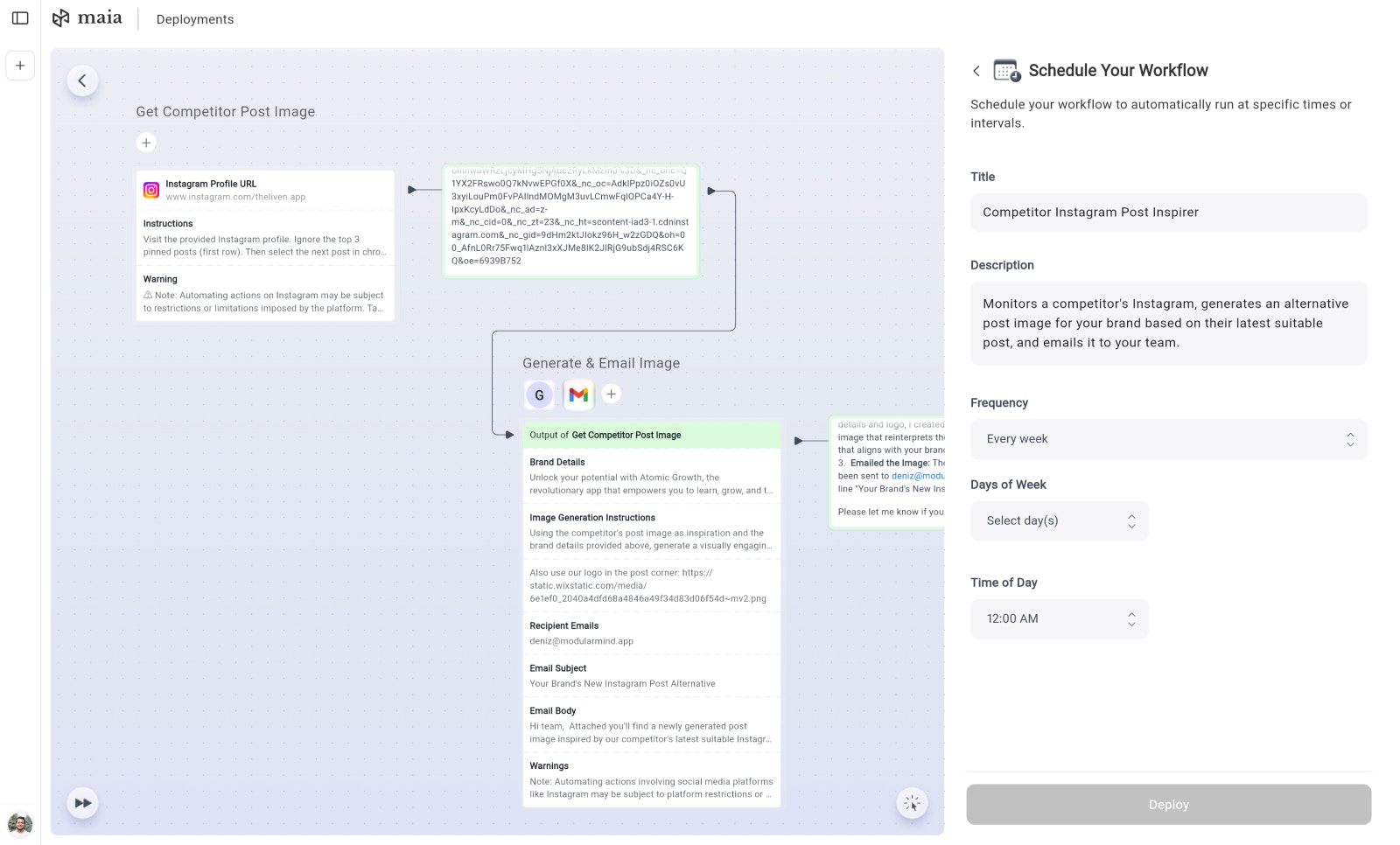 ### Scheduling Options
Triggers every hour at your chosen minute offset. Perfect for real-time monitoring tasks, frequent data updates, or time-sensitive automations that need to run throughout the day.
**Configuration:**
* Select minute offset (0–59 minutes past the hour)
Triggers once per day at your specified time. Ideal for daily reports, routine maintenance tasks, or regular content updates.
**Configuration:**
* Select the time of day when the workflow should execute
Triggers on specific days of the week at your chosen time. Great for weekly reports, periodic reviews, or tasks that align with your business week.
**Configuration:**
* Choose which day(s) of the week the workflow should run
* Select the hour to trigger execution
Triggers on specific day(s) of the month at your chosen time. Perfect for monthly reports, billing cycles, or end-of-month processes.
**Configuration:**
* Select which numbered day(s) of the month (1-31) to run
* Choose the hour to trigger execution
## Multiple Triggers on One Workflow
You can attach multiple routine triggers to a single deployed workflow. For example, a reporting workflow could have:
* A **daily** trigger for quick summary reports at 9 AM
* A **weekly** trigger for detailed analysis every Monday at 8 AM
* A **monthly** trigger for comprehensive reviews on the 1st
Each trigger runs independently. The workflow's execution logs show which trigger initiated each run.
## Use Cases
Generate and email performance reports every morning at 9 AM
Check competitor posts hourly and get notified of new content
Compile weekly analytics every Monday at 8 AM
Process billing and send invoices on the 1st of each month
## Best Practices
Match your schedule to your actual needs. Hourly schedules consume more resources — use them only when necessary.
Times are set based on your account's timezone. Ensure your chosen time aligns with your target audience or data availability.
Run your workflow manually first to verify it works correctly before setting up automatic execution.
Check your workflow runs regularly to ensure they're executing successfully and producing expected results.
You can pause or modify routine triggers at any time from your deployed workflow's settings without having to redeploy the entire workflow.
Learn how to trigger workflows from external events
### Scheduling Options
Triggers every hour at your chosen minute offset. Perfect for real-time monitoring tasks, frequent data updates, or time-sensitive automations that need to run throughout the day.
**Configuration:**
* Select minute offset (0–59 minutes past the hour)
Triggers once per day at your specified time. Ideal for daily reports, routine maintenance tasks, or regular content updates.
**Configuration:**
* Select the time of day when the workflow should execute
Triggers on specific days of the week at your chosen time. Great for weekly reports, periodic reviews, or tasks that align with your business week.
**Configuration:**
* Choose which day(s) of the week the workflow should run
* Select the hour to trigger execution
Triggers on specific day(s) of the month at your chosen time. Perfect for monthly reports, billing cycles, or end-of-month processes.
**Configuration:**
* Select which numbered day(s) of the month (1-31) to run
* Choose the hour to trigger execution
## Multiple Triggers on One Workflow
You can attach multiple routine triggers to a single deployed workflow. For example, a reporting workflow could have:
* A **daily** trigger for quick summary reports at 9 AM
* A **weekly** trigger for detailed analysis every Monday at 8 AM
* A **monthly** trigger for comprehensive reviews on the 1st
Each trigger runs independently. The workflow's execution logs show which trigger initiated each run.
## Use Cases
Generate and email performance reports every morning at 9 AM
Check competitor posts hourly and get notified of new content
Compile weekly analytics every Monday at 8 AM
Process billing and send invoices on the 1st of each month
## Best Practices
Match your schedule to your actual needs. Hourly schedules consume more resources — use them only when necessary.
Times are set based on your account's timezone. Ensure your chosen time aligns with your target audience or data availability.
Run your workflow manually first to verify it works correctly before setting up automatic execution.
Check your workflow runs regularly to ensure they're executing successfully and producing expected results.
You can pause or modify routine triggers at any time from your deployed workflow's settings without having to redeploy the entire workflow.
Learn how to trigger workflows from external events