

Computer Use: Beyond Text Scraping
Maia doesn’t just read websites, it can use them. The Secure Browser gives Maia the ability to click, scroll, type, and navigate websites exactly like you would.This is computer use technology: Maia sees the screen, understands visual elements, and takes actions just like you do with your browser.
What the Secure Browser Can Do
Click Elements
Buttons, links, menus, tabs, dropdowns
Fill Forms
Text inputs, checkboxes, radio buttons, file uploads
Navigate Pages
Follow links, use breadcrumbs, handle pagination
Scroll & Explore
Reveal hidden content, trigger lazy loading
Extract Data
Retrieve text, take screenshots, extract links
Handle Popups
Close modals, accept cookies, dismiss notifications
How It Works
Visual Understanding
The browser doesn’t use hidden APIs or HTML parsing. It sees the page as you do:- Takes a screenshot of the current view
- Analyzes the visual layout (buttons, text, images)
- Identifies interactive elements (clickable areas)
- Plans the next action (what to click or type)
- Executes the action and observes the result
Example: Applying to Y Combinator
Your request: 💬 Apply to Y Combinator’s next batch for my startup, using information from our pitch deck and business plan. What Maia does:1
Navigate to Application
Opens YC’s application portal and starts a new application
2
Visual Analysis
Identifies all form fields, text areas, and dropdown menus
3
Extract & Fill Company Info
From your documents, fills in:
- Company name and description
- Founder details and equity split
- Product/market fit explanation
4
Handle Complex Questions
For essay questions like “What’s new about your solution?”, synthesizes answers from your pitch deck
5
Submit
Reviews all entries, clicks submit, and confirms submission
Using the Secure Browser Session
When Maia needs to access a platform that requires authentication, it will prompt you to establish a secure browser session.Starting a Secure Session
1
Maia Detects Login Required
When your workflow needs access to a platform (like LinkedIn, your CRM, or accounting software), Maia will notify you that authentication is needed.
2
Interactive Browser Prompt
Maia presents an interactive button that opens the website directly in Maia’s secure browser. Simply click to navigate to the login page.
3
You Log In Securely
Enter your credentials in the secure browser window, just as you would normally. Your login details are air-gapped from the AI system.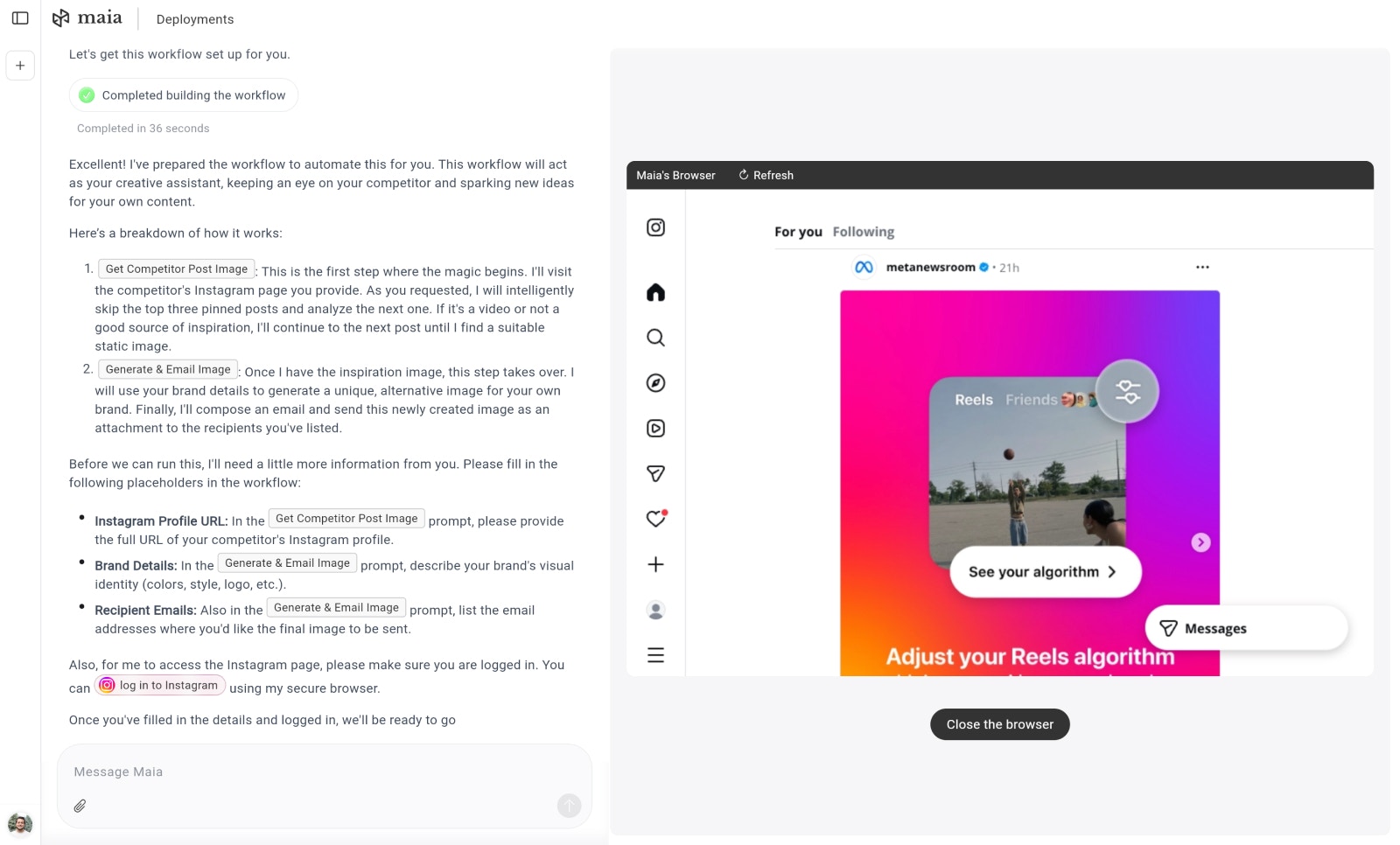
4
Session Established
Once logged in, the session is saved. You can close the browser window, and Maia can begin using this authenticated session to execute your workflow.
5
Maia Continues Automatically
When the workflow runs, Maia’s browser picks up the session and continues from where you left off, already logged in and ready to work.
You only need to log in once per platform. The session remains active until you manually log out from that platform yourself.
Security & Privacy: Your Credentials Stay Safe
Granting an AI access to your accounts requires trust. We built Maia’s browser environment with a primary goal: absolute security for your login details.The Zero-Trust Approach
In simple terms, “Zero Trust” means Maia is designed to treat everything, and everyone, as potentially insecure. This is the opposite of the old way, where once you were logged in, everything was trusted. With Maia:- Maia is trusted to do the work.
- Maia is never trusted with your secrets (passwords).
How Your Login Details Are Isolated (The Air-Gap)
Think of your password and the AI as being separated by a solid wall, an “air gap.” They can never touch.- You Log In (Your Action): When a task requires authentication (like accessing your LinkedIn or your accounting portal), Maia will ask you to log in via a secure, private browser window. You type the credentials into the web page, just like you normally would.
- Your Credentials Never Reach Our Servers: Your username and password are entered directly into the website you’re logging into. They never pass through Maia’s systems and are never stored anywhere on our servers.
- The Session Token (The Access Pass): Once you successfully log in, the website issues a session token and cookies, think of these as digitally “signed documents” that grant temporary access rights. These are the only things we store.
- Maia Works with the Access Pass: When Maia runs a workflow, it uses these session tokens and cookies to access the website on your behalf. The AI agents enter the website already authenticated, ready to work, just like when you return to a website and find yourself still logged in.
- You Control the Access: The session remains active until you manually log out from that platform yourself. When you log out, those “access passes” are revoked, and Maia can no longer access that account.
Crucial Guarantee: The AI models that execute the workflow only see the screen content (the visual data, the dashboard, the reports). It is technically impossible for the AI to access or read your actual login credentials, as those credentials were never passed to the system in the first place.
Ethical Use
Maia’s power comes with responsibility:- Don’t spam: Automate outreach, but keep it reasonable
- Don’t abuse: Respect rate limits and fair use
- Don’t violate privacy: Only access data you’re authorized to see
- Don’t harm: Avoid actions that could overload or harm websites
Next: Document Generation
Learn how Maia creates professional documents from research