

From Chat to Automation
Once you’ve perfected a workflow by watching it run, you can deploy it to the cloud to run automatically — no need to keep Maia open or manually trigger execution.Cloud deployment transforms one-off tasks into business processes that run reliably on schedule or on-demand.
Running Workflows Inside the Sessions vs. Deployed
The interface remains the same whether you’re actively working with Maia or reviewing automated runs. The difference is in how and when workflows execute.Running Inside the Session
What it means:- You initiate the workflow directly in a session
- Watch execution in real-time
- Results delivered when complete
- Testing new workflows
- One-off research tasks
- Tasks requiring human judgment
- Learning how Maia works
Deployed Workflows
What it means:- Workflow runs automatically on schedule or trigger
- No manual initiation required
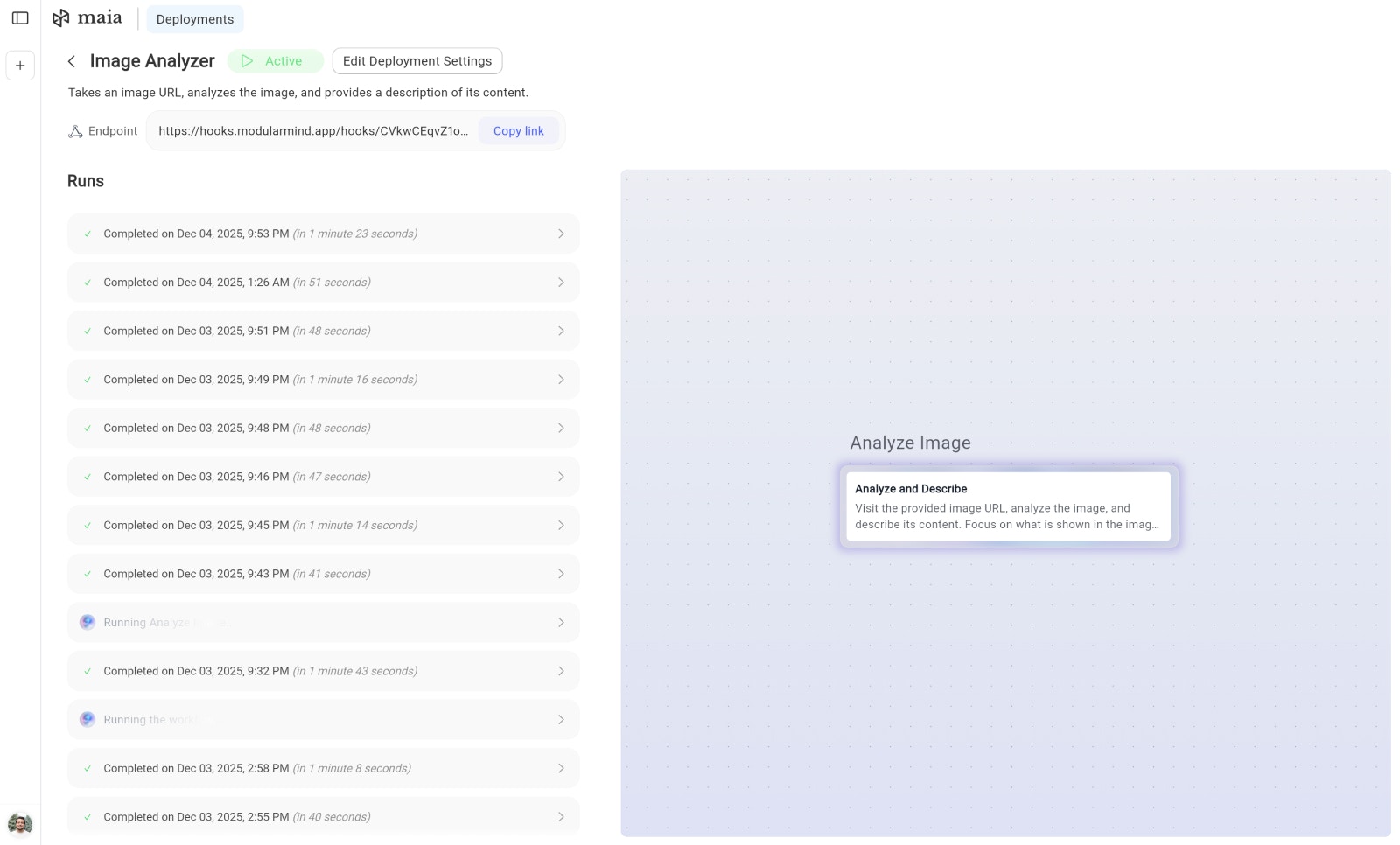
- You can open any deployment to see execution details
- Results saved in your workspace to access anytime
- Recurring tasks (daily, weekly, monthly)
- Event-triggered actions (when X happens, do Y)
- Background data processing
- Scaling operations
Deploying a Workflow
There are two ways to deploy a workflow:Method 1: Deploy via Chat
Simply tell Maia you want to deploy your workflow, and Maia will suggest the appropriate deployment type with options. Example:- Recommended deployment type (scheduled or webhook)
- Pre-configured options based on your request
- A Deploy button to review and confirm settings
Method 2: Deploy via Workflow Board
Use the Deploy workflow button in the top-right corner of the workflow board.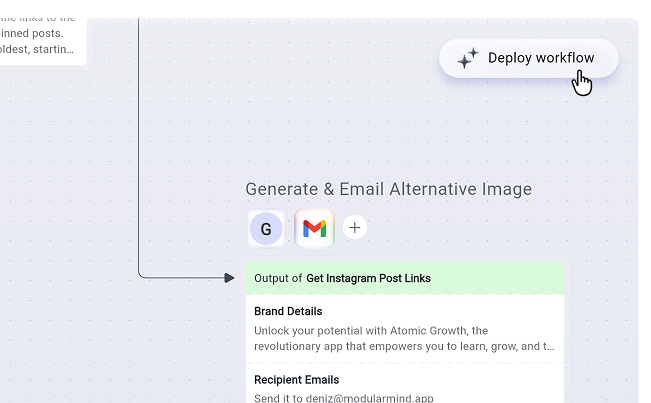
- Click the Deploy workflow button in the top-right corner
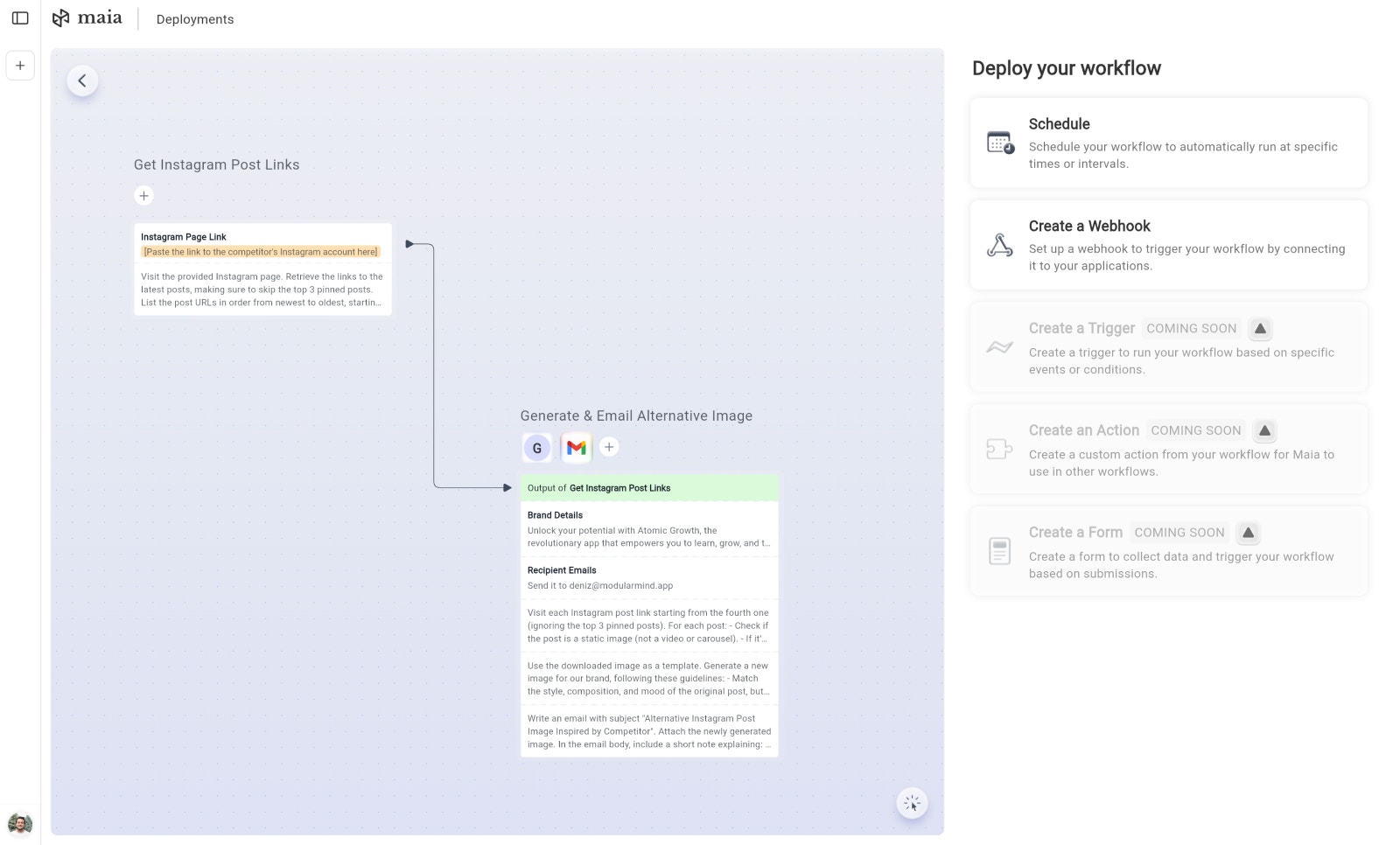
- The deployment options panel opens on the right side of the page
- Choose your deployment method:
- Schedule - Run automatically at specific times or intervals
- Create a Webhook - Trigger via external applications
- Create a Trigger - Run based on specific events or conditions (coming soon)
- Create an Action - Create a custom action from your workflow for Maia (coming soon)
- Create a Form - Collect data and trigger workflow based on submissions (coming soon)
- Configure the selected deployment type’s settings
- Click Deploy to activate
Deployment Limits by Plan
| Plan Tier | Active Deployments |
|---|---|
| Free Plan | 3 deployments |
| Plus & Pro Plans | Unlimited |
Real-World Deployment Examples
Example 1: Daily Competitor Monitoring
Workflow: Check 10 competitor websites for pricing changes Deployment:Example 2: Weekly Lead Enrichment
Workflow: Process new leads from Google Form submissions Deployment:Example 3: Monthly Financial Report
Workflow: Generate comprehensive financial report Deployment:Execution Logs
Every cloud deployment maintains workflow run logs:What’s Logged
- End time: When execution completed
- Duration: How long it took
- Steps completed: Which actions ran successfully
- Errors: Any failures or issues
- Results: Summary of what was produced and what actions were taken
Next: Scheduled Automations
Deep dive into setting up recurring workflows