

Event-Driven Automation
Webhook triggers turn deployed workflows into intelligent APIs that respond to external events — form submissions, payment notifications, chat messages, and more.With webhook triggers, Maia becomes a serverless backend that processes inbound requests with AI-powered logic and returns structured responses.
How Webhook Triggers Work
Basic Flow
1
Add Webhook Trigger
From your deployed workflow’s detail page, click the Add Trigger button and select Webhook.Maia generates a unique URL:
2
External Event
Another system sends data to your webhook URL
3
Maia Processes
Your workflow receives the payload and executes
- Parse incoming data
- Run AI analysis, research, or generation
- Use actions
4
Stream Response
Maia streams back the result via SSE events
Creating Webhook-Triggered Workflows
Simple Example: Lead Enrichment
Goal: When a contact form is submitted, enrich the lead data before adding to CRM. Workflow:Inbound Payload: Flexible Schema
Unlike traditional APIs that require strict schemas, Maia webhooks are intelligent.Maia Understands Context
Send any data format, and Maia figures it out:- JSON Object
- Form Data
- File Upload
- Image Upload
- Multiple Files
- Files in JSON
- ZIP Archive
- Complex JSON
Outbound Response: Controlling What Gets Returned
When adding a webhook trigger, you choose how Maia responds to incoming requests.Default Response (Immediate)
If you don’t enable “Respond to webhook with data”, Maia returns immediately with one of these standard responses: Success:Custom Data Response (SSE Streaming)
Enable “Respond to webhook with data” to return workflow outputs back to the caller via Server-Sent Events (SSE).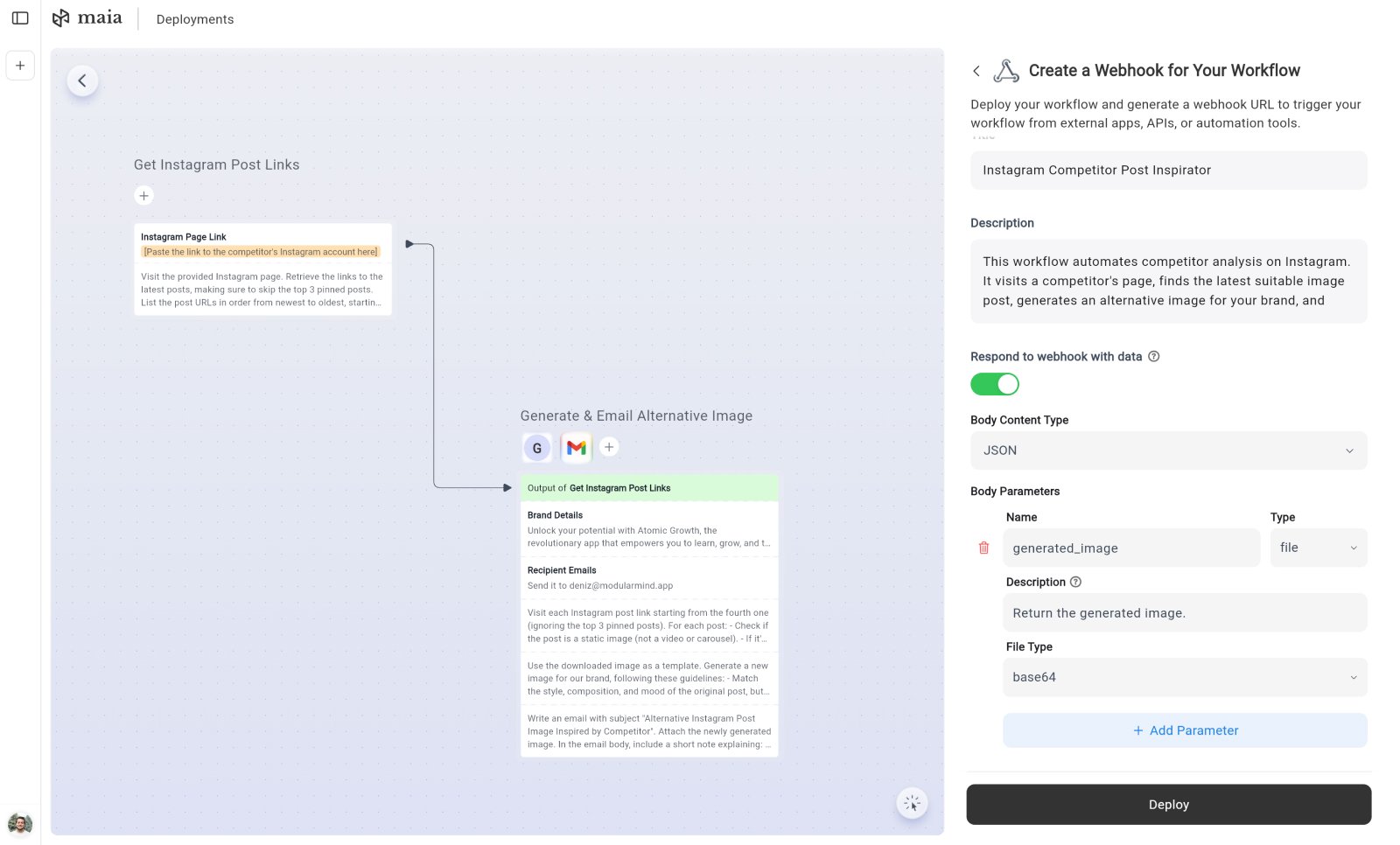
Maia uses SSE streaming instead of a standard JSON response. This keeps the connection alive while the workflow executes, preventing timeouts on long-running workflows.
Connection Protocol
When a webhook trigger with response data enabled receives a request, the connection follows this lifecycle:1
SSE Connection Established
The server responds with
200 OK and SSE headers:2
Heartbeats During Processing
While the workflow executes, the server sends periodic heartbeat comments every 15 seconds to keep the connection alive:These are SSE comments and should be ignored by your client.
3
Response Event
When the workflow completes, the server sends a For text-based responses (
response event containing the result:application/json, text/*), the body field contains the raw string. For binary responses (images, PDFs, ZIPs), the body is base64-encoded and an encoding: "base64" field is included.4
Done Event
A The connection closes after this event.
done event signals the stream is complete:Error Handling
If the workflow fails to trigger, the server sends anerror event instead:
Client Implementation Example
Supported Response Types
Maia can return:- Text data in JSON format (structured responses) — delivered as-is in the
bodyfield - Images (JPEG, PNG) — base64-encoded in the
bodyfield withencoding: "base64" - Text files — delivered as-is in the
bodyfield - PDFs — base64-encoded in the
bodyfield withencoding: "base64" - ZIP files — base64-encoded in the
bodyfield withencoding: "base64"
Defining Response Parameters
For each parameter you want to return, specify: Name: The field name in the response (e.g.,lead_score, generated_image, report_pdf)
Description: Natural language explanation of what this field contains and where Maia should get the value from. This helps Maia understand which workflow outputs map to this response field.
Type: The type of data (text, file, etc.)
Response parameter definitions work identically to body parameters in Custom Actions. See that section for detailed parameter configuration guidance.
Example: Lead Scoring Response
Configuration:Example: Document Generation Response
Configuration:Real-World Webhook Examples
Example 1: Intelligent Chatbot Backend
Setup: Website chat widget → Maia webhook Workflow:- Receive visitor message
- Search knowledge base using custom action
- If found: Generate helpful response
- If not found: Create support ticket via custom action, send notification
- Return response to chat widget
Example 2: Invoice Processing
Setup: Email automation → Maia webhook Workflow:- Receive invoice PDF as attachment
- Extract data (vendor, amount, due date, line items)
- Validate against purchase order using custom action
- Add to accounting system via custom action
- If > $5000, create approval request via custom action
- Return processing summary
Example 3: Product Review Aggregator
Setup: Product review form → Maia webhook Workflow:- Receive review text and rating
- Analyze sentiment (positive/negative/neutral)
- Extract key themes (quality, pricing, support, etc.)
- Check for spam/fake reviews
- If legitimate, publish to website via custom action
- If mentions bug/issue, create support ticket via custom action
- Return analysis
Next: Security & Privacy
Learn how Maia protects your data and credentials